How to use Tab Tender: a complete step-by-step walkthrough
By Mitch R, Tab Tender Team · 9 min read · Updated June 11, 2026
Tab Tender splits a group bill in a few steps: import the receipt (photo, delivery-app screenshot, or a digital-receipt link from Toast, Square, or SkyTab), add everyone, tap who had what, then Share & notify — by link or QR. Tax and tip are split proportionally for you.
Tab Tender turns a messy group bill into a clean, per-person breakdown with tap-to-pay links — no spreadsheet, no “just Venmo me whatever.” This walkthrough takes you through the whole flow start to finish: starting a tab from a receipt, editing it, assigning who had what, sharing, getting everyone to pay, reconciling, and the account features that tie it all together.
On this page
- 1. Start a tab
- 2. Review and edit the items
- 3. Add the people
- 4. Assign who had what
- 5. Pre-payments, discounts, and currency
- 6. Share & notify
- 7. Claiming your spot (when someone shares with you)
- 8. Paying and getting paid back
- 9. Reconcile: confirm who's paid
- 10. Balances: who owes whom, everywhere
- 11. Feed, trips, and insights
- 12. Friends, groups, and your account
- 13. Install the app and turn on notifications
1. Start a tab
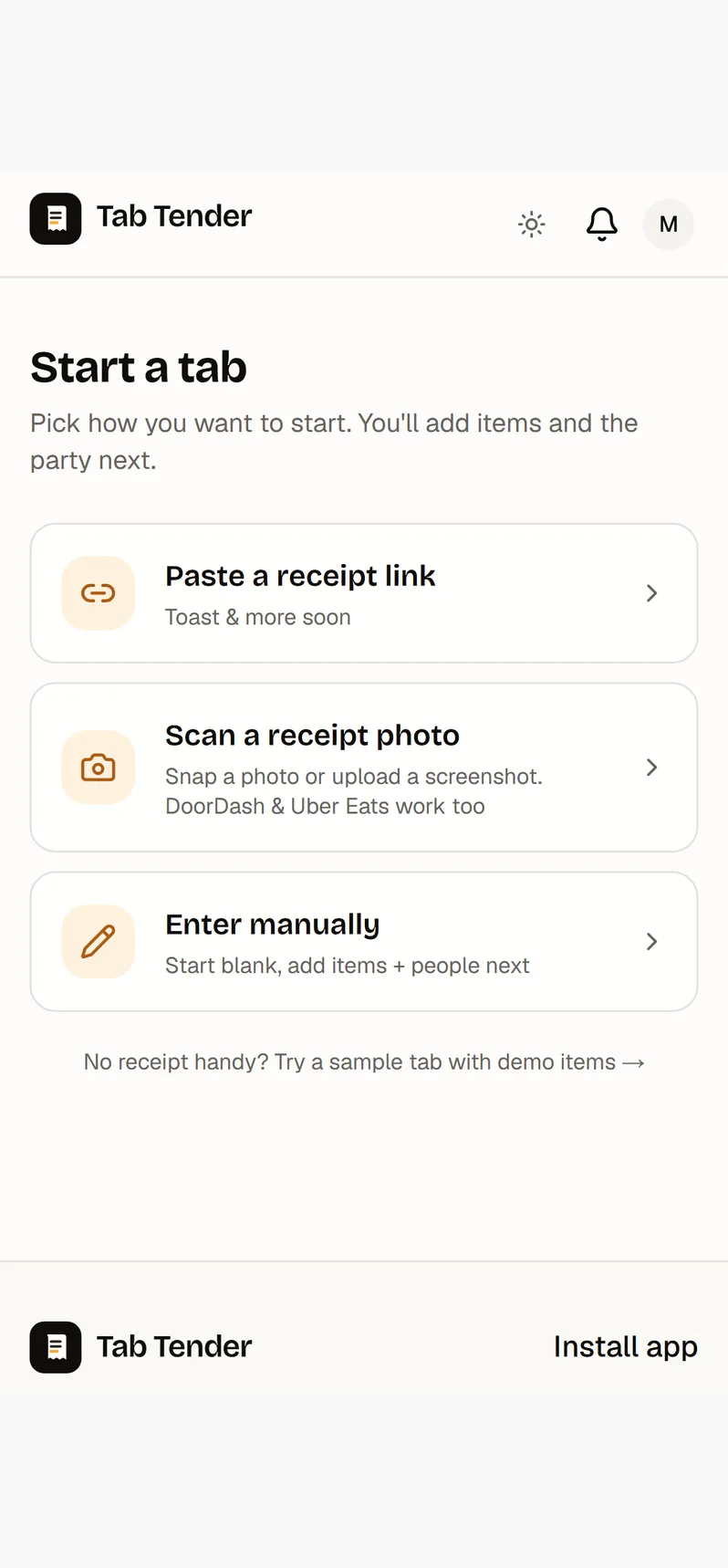
From the home screen tap "Start a tab." You can create one as a guest, but signing in (free) unlocks receipt scanning, saved friends and groups, balances, and the ability to claim your spot on tabs other people share with you.
There are three ways to get the items in:
- Snap a photo: upload a picture or PDF of an itemized receipt and the scanner reads the items, prices, tax, and tip automatically. The photo stays attached to the tab as proof for everyone on it. A screenshot of a delivery-app order summary (Uber Eats, DoorDash, Grubhub) works the same way — fees come in as a service charge.
- Import a digital receipt: paste the receipt link the venue texted or emailed you. Toast (toasttab.com/receipts/…) and Square (squareup.com/r/…) links are read directly, and SkyTab receipts (a PDF) are downloaded and scanned for you — every line item, tax, tip, and surcharge pulled in automatically. The original link is kept as proof.
- Add items by hand: skip importing and type the items yourself — handy for a cash bar tab or a hand-written check.
- Just exploring? Tap “try a sample tab” for a pre-filled demo with fake items — play with assigning and sharing. Sample tabs clean themselves up automatically overnight.
2. Review and edit the items
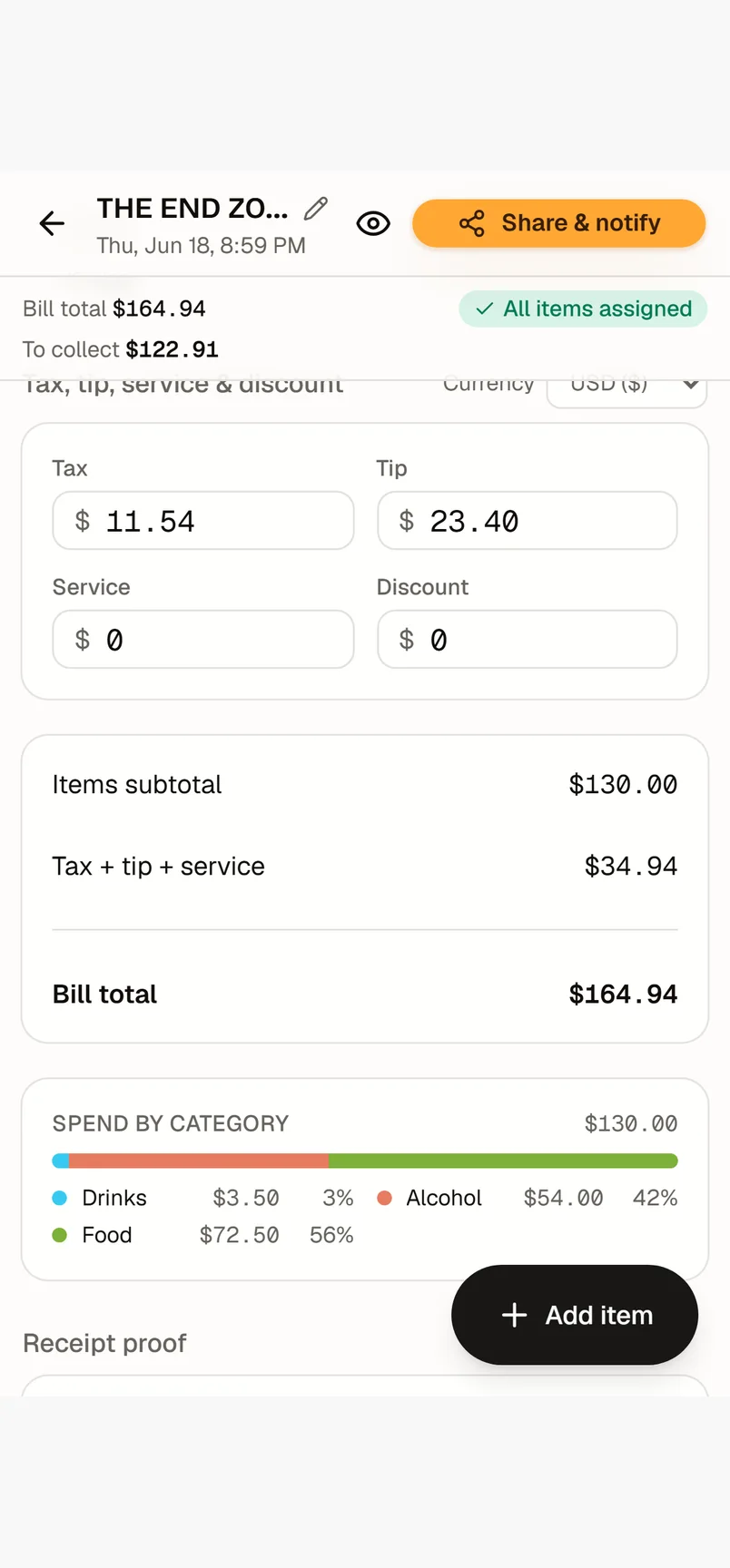
After an import, give the parsed items a quick once-over — scanning is good but not perfect. In the editor you can add, rename, re-price, or delete any line; adjust quantities; and set a category (food, drinks, alcohol, dessert, etc.) that powers your spending insights later.
If Tab Tender detected a receipt total, it shows a heads-up whenever the items don't add up to it, so you can catch a missed or mis-read line before anyone pays. Tax, tip, and service charges live in their own fields and are split proportionally — you don't assign them to anyone.
3. Add the people
Add everyone who was there. You can type plain names, or — once signed in — add saved friends and whole groups in a tap.
- Friends: add an accepted friend and their spot is pre-claimed to their account, so the tab shows up in their My Tabs automatically.
- Groups (parties): save a regular crew once and load the entire roster at once, even right after scanning a receipt.
- “This is me”: tag the member row that's you so the tab lands in your own My Tabs and you're not charged as if you owe yourself.
4. Assign who had what
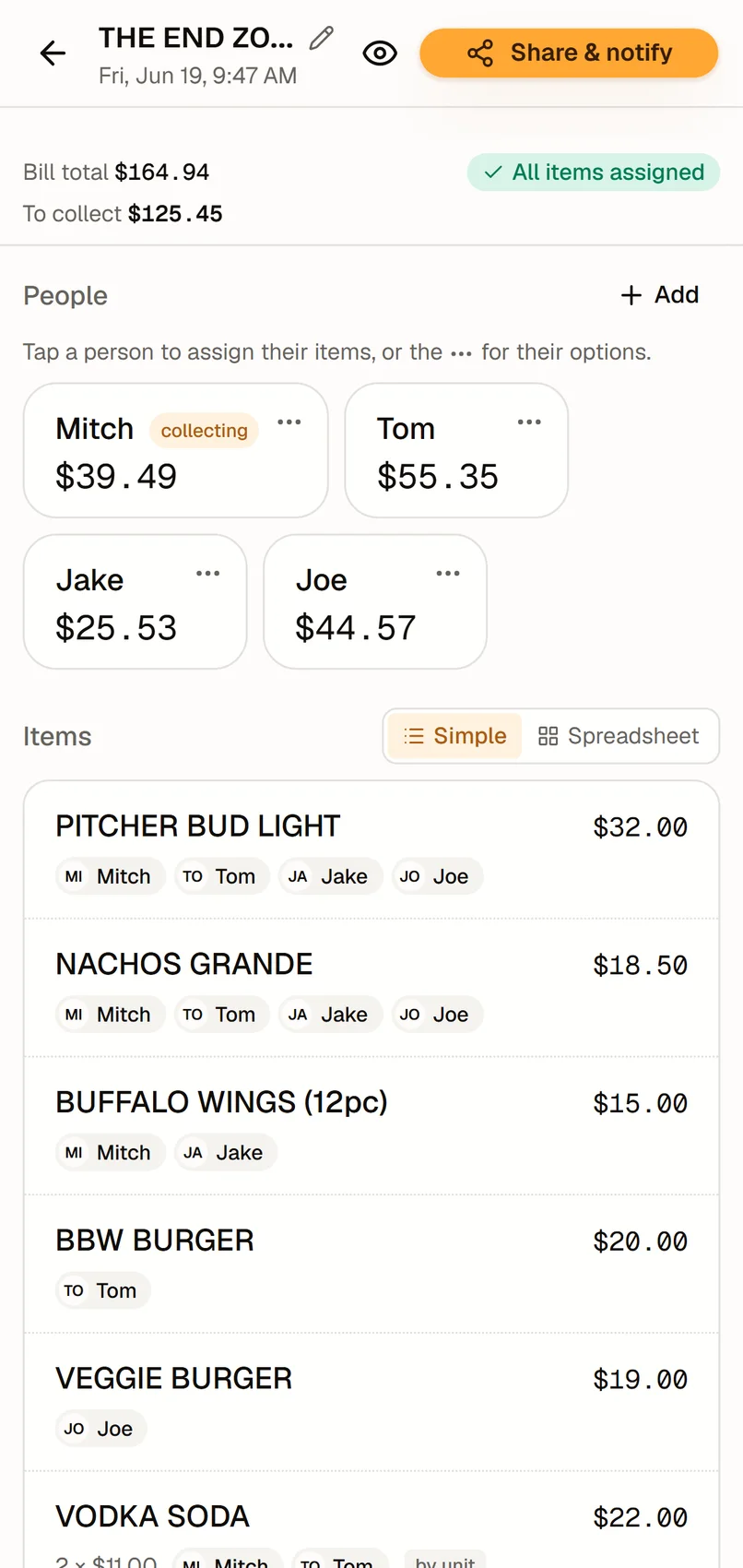
This is the heart of a fair split, and it's built to be fast. Tap a person to start assigning to them (their card highlights so you always know who you're on), then tap each item they had. Most items go to one person; a shared plate can go to everyone who split it. Tap Done when you've finished with that person, or tap someone else to switch.
Need an exact split? Tap the item itself instead of a person to open it: divide it by units (for example 6 of 10 beers to one person) or by percentage (75/25), and the totals always reconcile back to the item's real price. With a person selected, you can also give them just some of a multi-quantity line and leave the rest for someone else.
Each person card has an options menu (the ⋯ button) for renaming, marking paid, sending a reminder, and more. Anything you leave unassigned simply isn't charged to anyone yet, and if you share the tab, signed-in viewers can suggest who had the leftover items, which show up for you to approve in real time.
5. Pre-payments, discounts, and currency
Real bills have side deals, and the editor handles them so the total stays balanced.
- Pre-payments: if someone paid in advance (the deposit, the Uber), record it in one of three modes — subtract it from what they owe, leave their share and note the group owes them back, or hide them from the split and reduce the total.
- Discounts: apply a whole-bill discount (a coupon, happy hour) that's spread proportionally, or a per-person comp (the birthday entrée) that's absorbed without throwing off the math.
- Covered by the group: treating someone (a birthday, a guest of honour)? Mark them covered and their whole share is lifted off them and spread across everyone else — they keep their items and get a crown, but pay $0, and the bill still balances. Or let one person 'cover extra' to chip in toward everyone else's share.
- Currency: each tab carries its own currency (defaulting from your profile), so a trip abroad formats correctly and your insights stay sensible.
6. Share & notify
When the split looks right, tap "Share & notify." On a phone this opens the native share sheet (text, messaging apps, AirDrop) with a link and a tidy summary; on desktop it copies the link. The share dialog also has a QR code — hold your phone up and everyone at the table scans it to open their own share, no typing, no app. At the same time, anyone you added who has an account gets a notification that they're on the tab — sent at this moment, deliberately, rather than before you've finished assigning.
If you share before every item is assigned, the message changes automatically: instead of broadcasting totals that are about to move, it asks people to help match the open items, and the link drops them straight onto the “help assign these items” screen. Signed-in viewers suggest who had what for you to approve, and paying stays locked until everything's assigned — so nobody pays a number that's still changing.
A share link is public for 7 days so anyone can open it to see what they owe and pay. After that it goes private: only you and people who claimed a spot (while signed in) can still view it to settle up.
7. Claiming your spot (when someone shares with you)
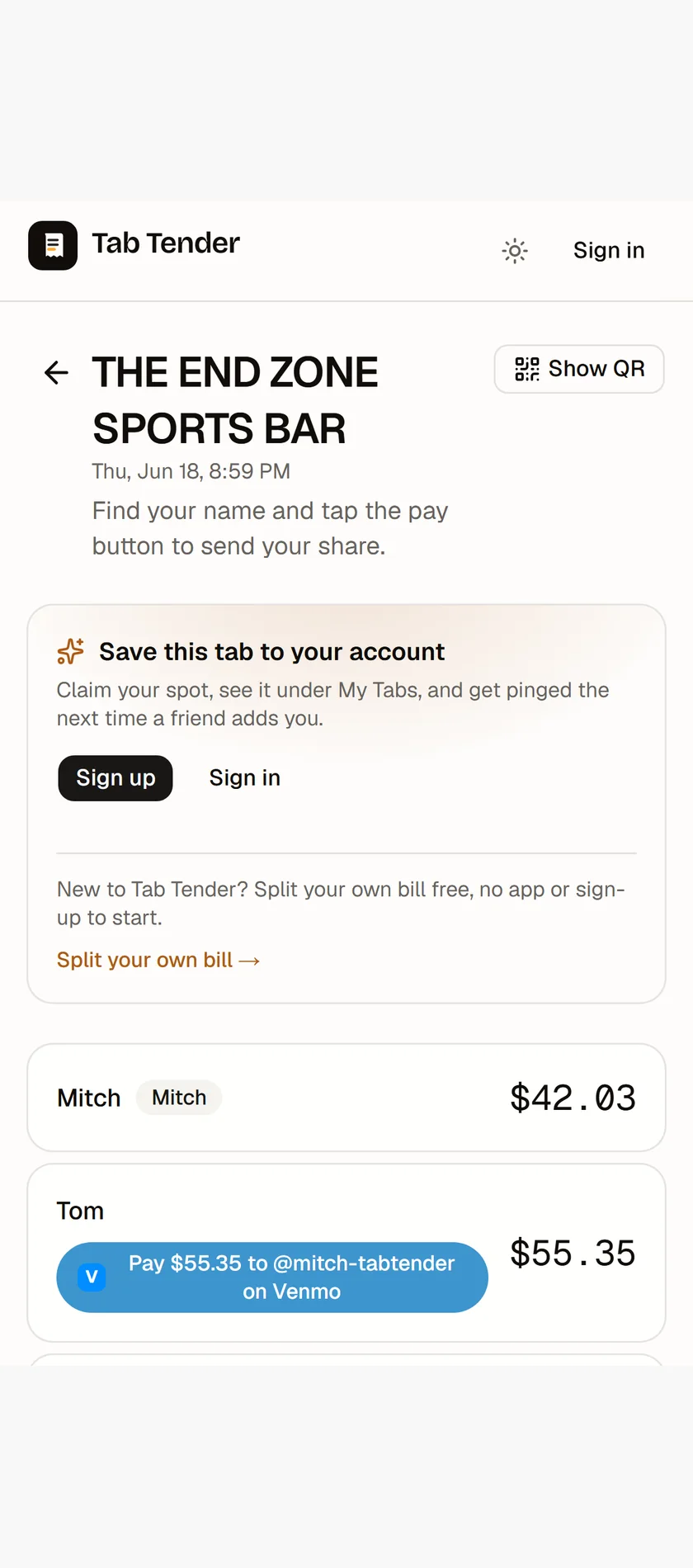
On the receiving end, open the link, find your name, and tap "This is me" to claim your line — the tab saves to your account so you can track it and settle from anywhere. If you're not signed in you can still see and pay your share; claiming just keeps it on your record and lets the host follow up.
Spot a problem with your line? Tap "Something here not yours?" to flag an item you didn't have — including just part of a multi-unit line ("2 of these 3 beers weren't mine"). The host reviews and accepts before anything changes. And while the table is sorting itself out, the page refreshes itself, so you see other people's claims and suggestions appear live.
8. Paying and getting paid back
Add your payment handles in your profile once — Venmo, Cash App, Zelle, PayPal, Wise, or Revolut — and pick a preferred method per tab. Everyone on the share page gets a button that opens their payment app prefilled with the exact amount they owe (for Zelle, a tap-to-copy identifier, since Zelle has no universal link).
After you tap your pay button and come back, a quick “Did you pay?” prompt lets you mark it in one tap — no extra buttons to hunt for.
9. Reconcile: confirm who's paid
Tab Tender doesn't move money — your payment apps do — so it keeps a clear two-sided record instead. When someone marks their share as paid, it shows as “awaiting your confirmation.” As the host you confirm once the money actually lands, which flips that line to settled.
If someone's dragging their feet, send a friendly reminder from the tab — it nudges them with their amount and a pay link, without you having to draft a single awkward text.
Edited a tab after someone already paid? Tab Tender remembers what they paid and compares it to their new share, then flags “owes a little more” or “owed some back” on the tab, in My tabs, and in your balances — so a late change never leaves someone quietly short or out of pocket.
10. Balances: who owes whom, everywhere
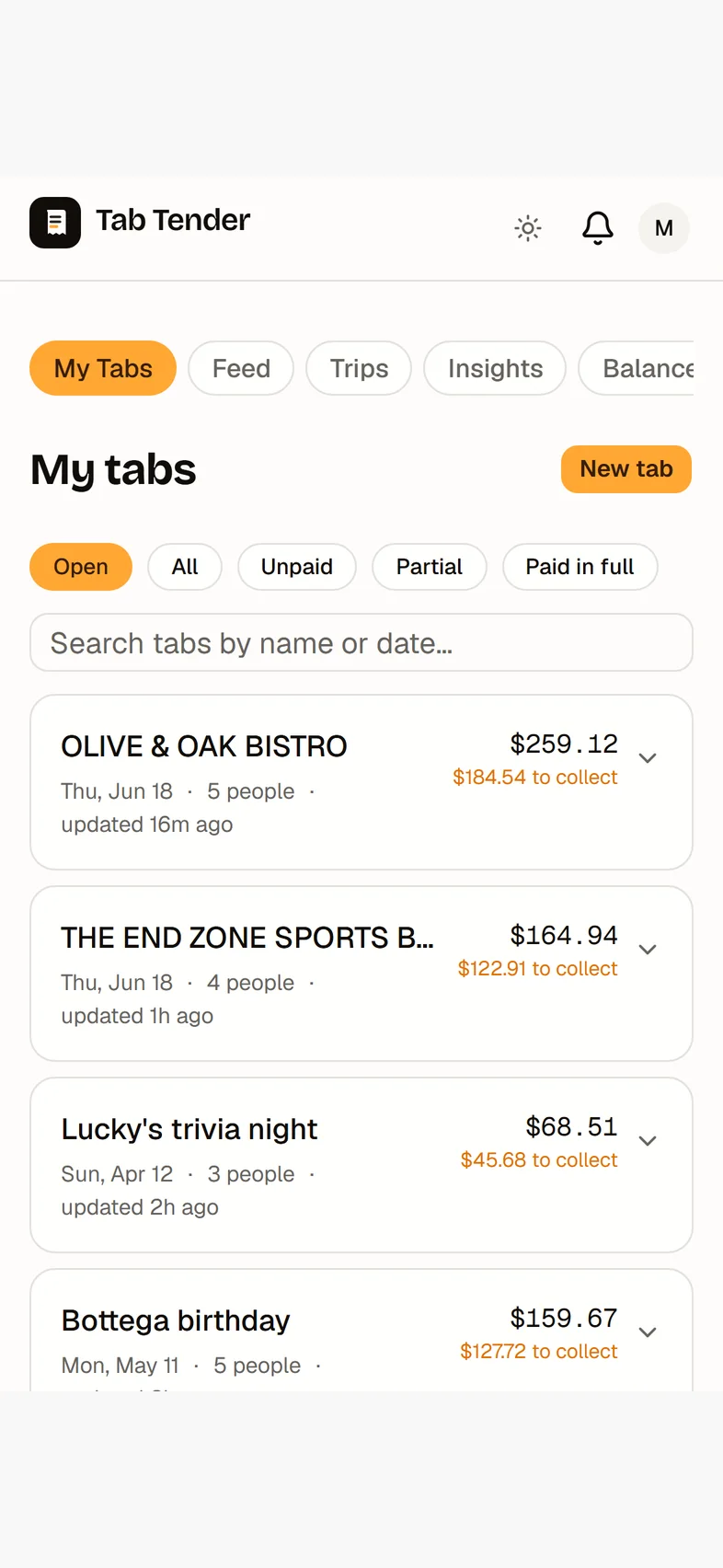
The Balances page nets out everything across all your open tabs with each friend, per currency, so you see a single “owes you” or “you owe” number per person instead of chasing tab by tab. Tap a friend to see exactly which tabs drive that balance, pay what you owe, and tap Settle up to clear the running total once you're square. (Settling clears the record; the money still moves through your pay links.)
11. Feed, trips, and insights
Three more places tie your activity together:
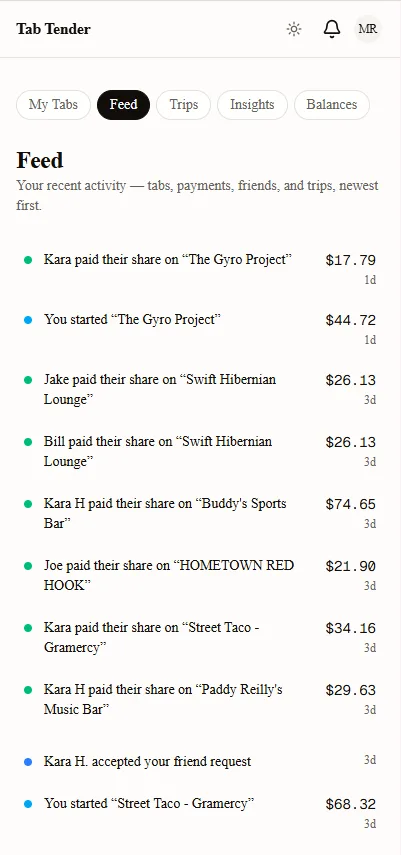
- Feed: a reverse-chronological timeline of everything — tabs started, people joining, payments marked and confirmed, friend requests, and trips.
- Trips & households: group several tabs under one trip or event (a weekend away, a conference) for a combined running total, a roster of everyone involved, and a net settle-up that folds the tabs different people covered into the fewest transfers — close the trip to lock the numbers in. A household is the ongoing version (roommates, a regular crew): it never closes, and you settle the running balance whenever it suits. Trips have their own share link too, with one-tap “mark my trip settled.”
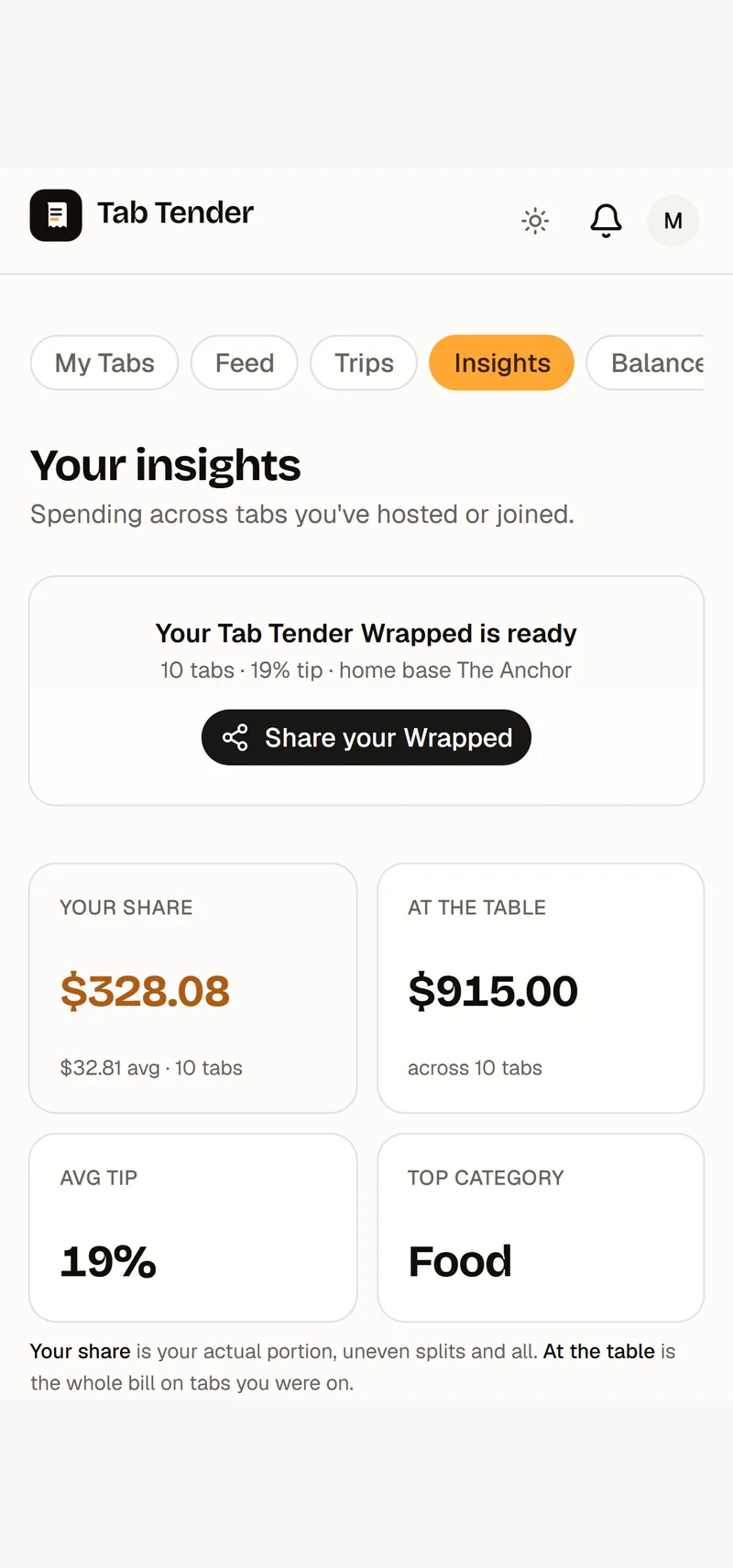
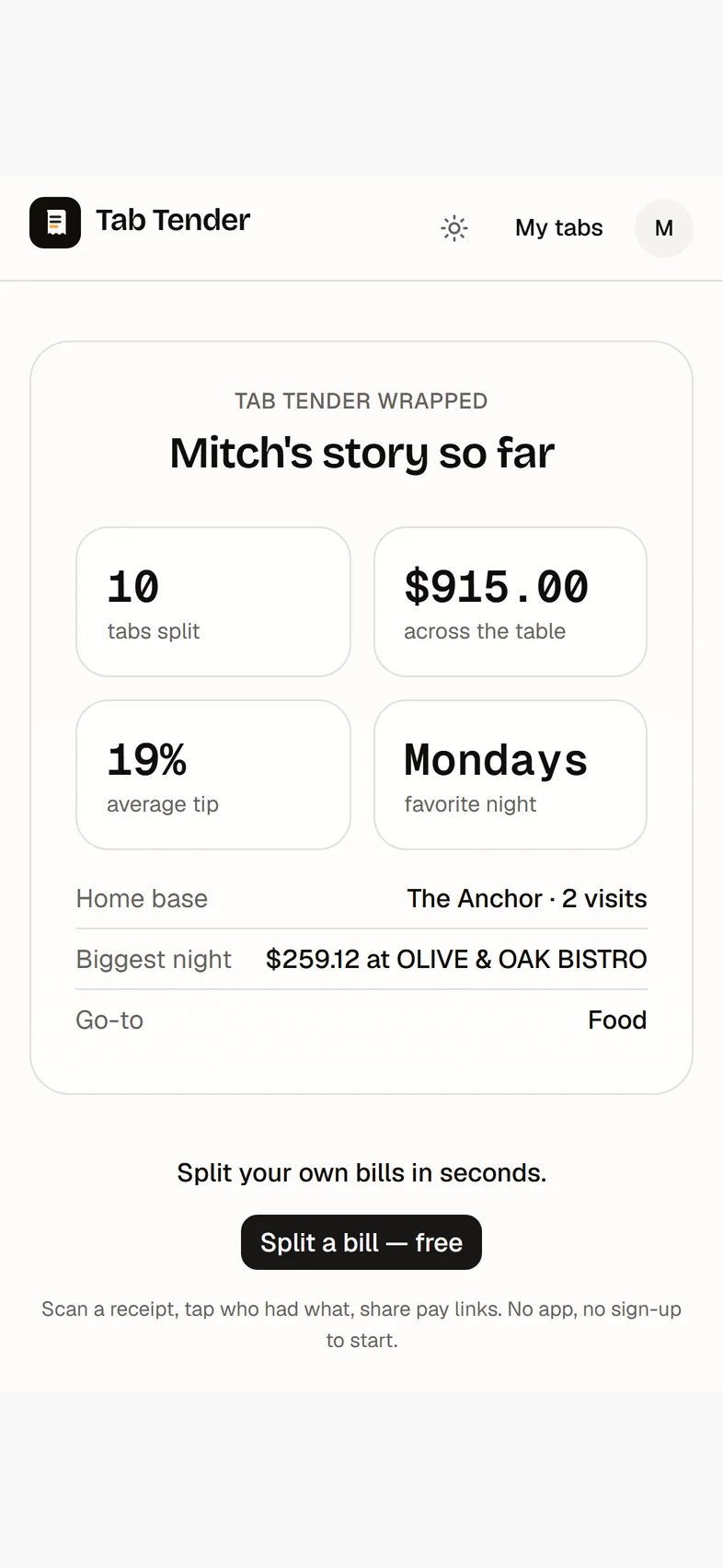
- Insights: your personal spending recap — totals by category, the last several months, and your top category — across every tab you've hosted or joined, with a shareable Wrapped card to post your year in numbers.
12. Friends, groups, and your account
Add friends by @username or the email they signed up with, and you'll also see recommendations — people you split with and friends of friends, with mutual-friend counts. Save groups for crews you split with often. In your profile you set your name, default currency, payment handles, and notification preferences, and confirm your email.
13. Install the app and turn on notifications
Tab Tender is a web app you can install to your home screen for one-tap, full-screen access — look for the install prompt or the “Install app” option in the footer (on iPhone, use Safari's Share button → “Add to Home Screen”). After you sign in on a device, you'll be offered push notifications so you hear about new tabs, payments, and friend requests the moment they happen — including a little celebration when the last person on your tab pays up.
One more shortcut for regulars: open any past tab and pick “Duplicate tab” under Reuse — same people, fresh bill. That's the whole loop: scan, assign, share, get paid, and reconcile — with balances, trips, and insights keeping the bigger picture tidy.